 EasyLife
Settings – Customize EasyLife to Your Needs
The settings page is your control center for personalizing every aspect of EasyLife – from your account and subscription to the visual theme and background.
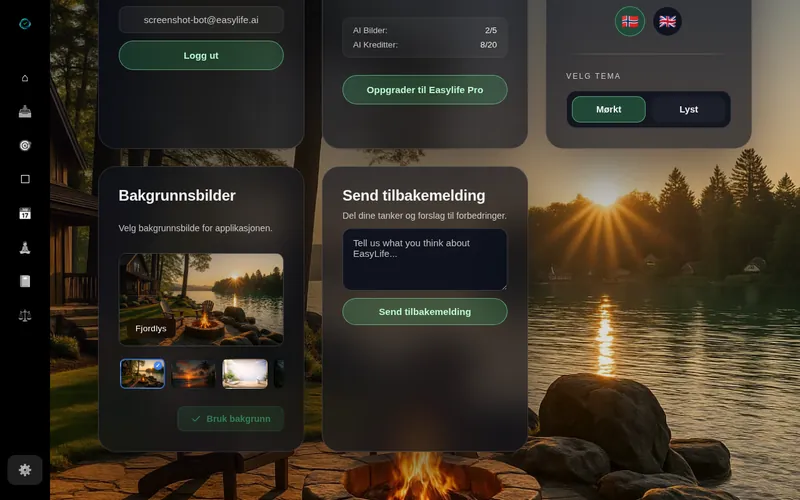
EasyLife is designed to adapt to you, not the other way around. On the settings page you will find clearly organized cards that let you manage your account, monitor your subscription, choose a language, switch themes, set a background image, and share feedback with the team.
This guide walks you through each card step by step so you know exactly where to find every option and how to use it. We recommend spending a few minutes here when you first sign up to make EasyLife feel like your own.
Open settings
Click Settings (⚙️) in the left-hand sidebar menu. The settings page opens with several cards arranged in a clean grid. Each card controls a different area of your EasyLife experience.
At the top of the page you will see the heading "Settings" together with a "Run demo" button. Clicking this button restarts the guided onboarding tour – useful if you want a refresher on how EasyLife works or want to show a colleague.
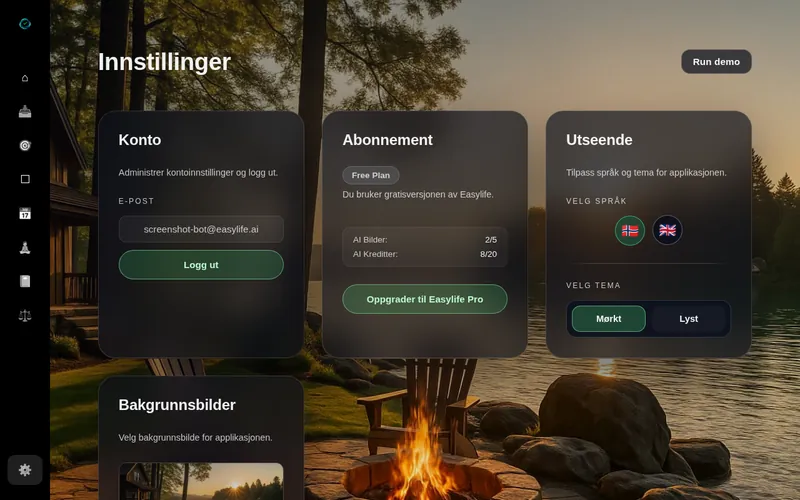
Account
The Account card shows your registered email address and gives you quick access to sign out. Use this card to verify which account you are logged in with – especially useful if you have multiple accounts.
- Email – displays the email address linked to your account.
- Log out – click the logout button to securely end your session. You will be returned to the login page.
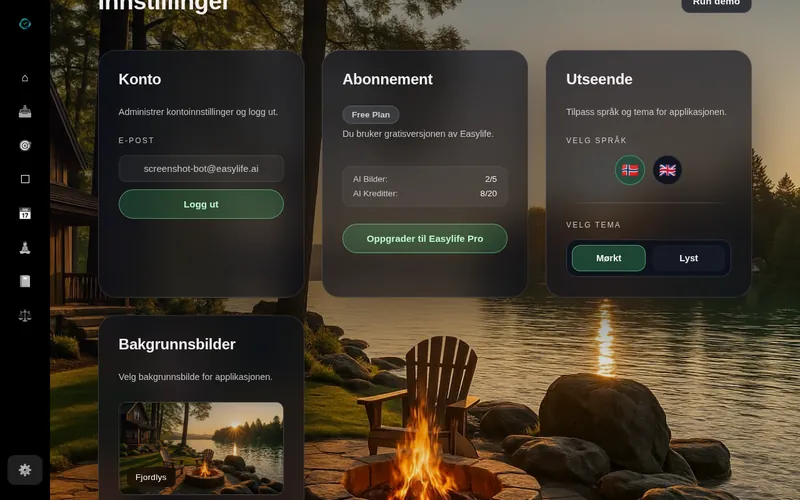
Subscription
The Subscription card gives you full visibility into your current plan and AI usage. Whether you are on the free tier or a Pro plan, this card keeps you informed so you always know what is available to you.
- Plan badge – shows whether you are on Free Plan or Pro.
- AI Images – a progress bar showing how many AI-generated images you have used this month. Resets at the start of each billing cycle.
- AI Credits – a progress bar tracking your remaining AI credits for the current billing period. Used for AI-powered features like goal analysis and life balance insights.
- Upgrade / Manage – free users see an Upgrade button to switch to Pro; Pro users see a Manage subscription link to update payment or cancel.
Appearance
The Appearance card lets you tailor how EasyLife looks and feels. Two main options are available:
- Language – toggle between English 🇬🇧 and Norwegian 🇳🇴. The entire application updates instantly when you switch – including all menus, labels and notifications.
- Theme – choose between Dark and Light mode. Dark mode reduces eye strain in low-light environments, while Light mode offers better visibility in bright rooms.
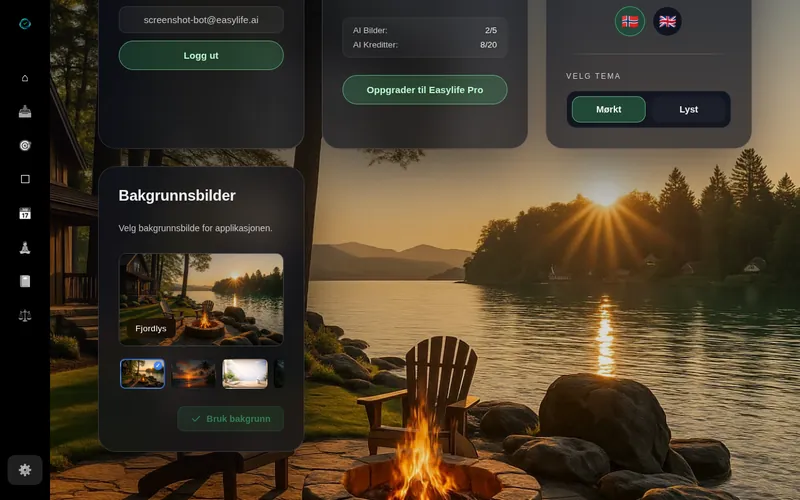
Background images
The Background images card lets you personalize your workspace with beautiful scenery from around the world. A live preview shows exactly how each image will look before you apply it.
- Preview – the large preview area at the top of the card shows the currently selected image in full size.
- Thumbnails – browse the thumbnail strip below the preview. Click any thumbnail to see a live preview of that background before committing.
- Apply – once you are happy with your choice, click "Apply background" to set it as your workspace background across all pages.
Feedback and improvements
EasyLife is continuously improved based on user input. Two cards on the settings page help you participate in shaping the product:
- Send feedback – write your thoughts, suggestions or bug reports directly from settings. The team reads every submission and uses it to improve the product.
- Suggested improvements – browse and vote on feature ideas proposed by the community. Your votes directly help prioritize what gets built next.
Ready to customize EasyLife?
Log in and make EasyLife your own – completely free, no credit card required.